Add Pirate Weather to Home Assistant in 3 Easy Steps
To add Pirate Weather to Home Assistant in 3 easy steps, you’ll first want to register for an API key at the Pirate Weather site. This key is essential for accessing live weather data.
Next, you can install the integration using HACS or manually. If you go the manual route, just place the files in the custom_components folder. After that, simply restart Home Assistant.
Finally, it’s time to configure the integration. You can do this by entering your API key and location coordinates through Settings > Devices & Services. Don’t forget to restart again to activate it!
Once everything is set up, you’ll soon see live weather data ready to use.
Plus, there are plenty of options to explore for customizing your experience even further. Enjoy your new weather integration!
Installation Methods for Pirate Weather

Whether you prefer an automated or manual approach, you can install the Pirate Weather integration for Home Assistant through HACS or by creating a custom components folder.
Using HACS simplifies the installation process: just add the integration’s custom repository by entering the GitHub URL `https://github.com/golles/ha-pirateweather` in HACS integrations, then restart Home Assistant.
Add the integration’s repository URL in HACS and restart Home Assistant for a seamless setup.
For manual setup, create a `custom_components/pirateweather` folder inside your Home Assistant configuration directory and place the necessary files there.
Regardless of method, you must register for an API key at https://pirate-weather.apiable.io to access weather data and sensors.
This API key is crucial for the integration to function properly.
Following these steps ensures you have the integration installed correctly and ready for the next configuration phase.
Configuring Pirate Weather Integration
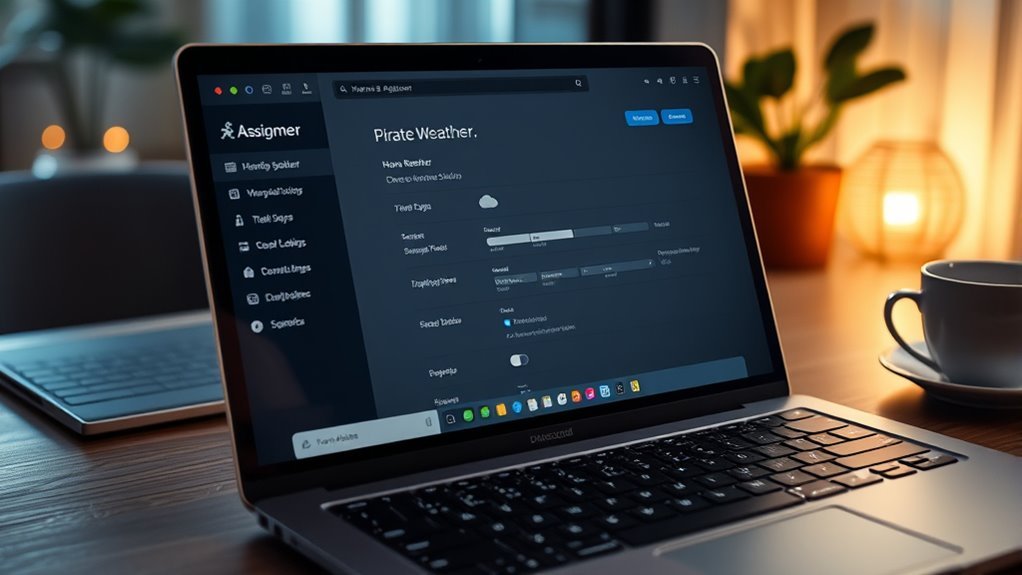
Once you’ve installed the Pirate Weather integration, you’ll need to configure it by entering your API key and setting your location’s latitude and longitude.
In Home Assistant, head to Settings > Devices & Services, add a new integration, and select Pirate Weather from the list.
During setup, provide your API key from Pirate Weather and specify fixed coordinates to guarantee accurate weather data.
You can customize the configuration by adjusting update intervals, language, forecast days, and monitored conditions to tailor the weather entities shown in your dashboards.
If you installed Pirate Weather manually, ensure the custom components are correctly placed in the `custom_components/pirateweather` folder.
After completing the setup, restart Home Assistant to activate the integration.
Once active, you’ll find weather entities ready to be used within your Home Assistant environment.
Verifying and Using Pirate Weather Data

To verify and use Pirate Weather data in Home Assistant, first check the entities like `weather.pirate_weather` and related sensors under Developer Tools > States.
Make sure your API key and location coordinates are correctly configured to receive accurate weather updates.
Watch the entities to confirm they update regularly, typically every 900 to 1200 seconds.
You can use templates or Developer Tools to inspect sensor attributes such as forecast details, icon conditions, and precipitation levels for thorough verification.
If you notice data not updating or appearing incorrect, try restarting Home Assistant.
Also, review your configuration and check the logs for any API or connectivity errors.
Proper verification ensures reliable weather data for your Home Assistant setup.
Frequently Asked Questions
How to Add Pirate Weather to Home Assistant?
You start by installing the Pirate Weather integration via HACS.
Then, register for an API key.
Next, add the integration in Home Assistant.
Enter your API key and location, and then restart Home Assistant to activate the weather data.
How Do I Add Weather to My Home Assistant?
Imagine catching the breeze—simply install a weather integration, grab an API key, and enter your location in Home Assistant.
Once set, your dashboard will bloom with live weather data, keeping you informed effortlessly.
How Do I Manually Add Integration to Home Assistant?
You manually add integration by creating a custom component folder, placing necessary files there,
updating your configuration.yaml with platform details and API keys.
Then restart Home Assistant to activate the integration and verify its entities.
What Is the Free Weather API Without Key?
The free weather API without a key you can use is Pirate Weather.
It lets you access weather data without signing up or needing credentials.
This makes it easy to integrate into your projects without hassle or cost.
Conclusion
Now that you’ve added Pirate Weather to Home Assistant, you’re tapping into one of the most reliable weather APIs out there.
Did you know Pirate Weather sources data from the same provider as Dark Sky, serving millions of users worldwide?
By following these simple steps, you’ve enhanced your smart home with accurate, hyperlocal forecasts.
Keep exploring its features, and you’ll see how easy it is to stay ahead of the weather right from your dashboard.
In conclusion, integrating Pirate Weather into your Home Assistant setup not only provides you with precise weather updates but also elevates your smart home experience.
With real-time data at your fingertips, you can make informed decisions and plan your day better.
So, embrace the power of accurate forecasts and enjoy a weather-savvy lifestyle!